Using the authenticator
The Triauth Authenticator is the application that holds your keys and asks for your approval to use them. You open it like any website, at auth.triauth.org or at the web address of your self-hosted instance. Everything happens in your browser. There is no account to create, and no server that keeps your data.
The approval screen
When a website asks you to sign in, it reads your domain's record and sends your browser to the authentication endpoint listed there. The authenticator opens like any other web page, loaded from that address, and shows the request:
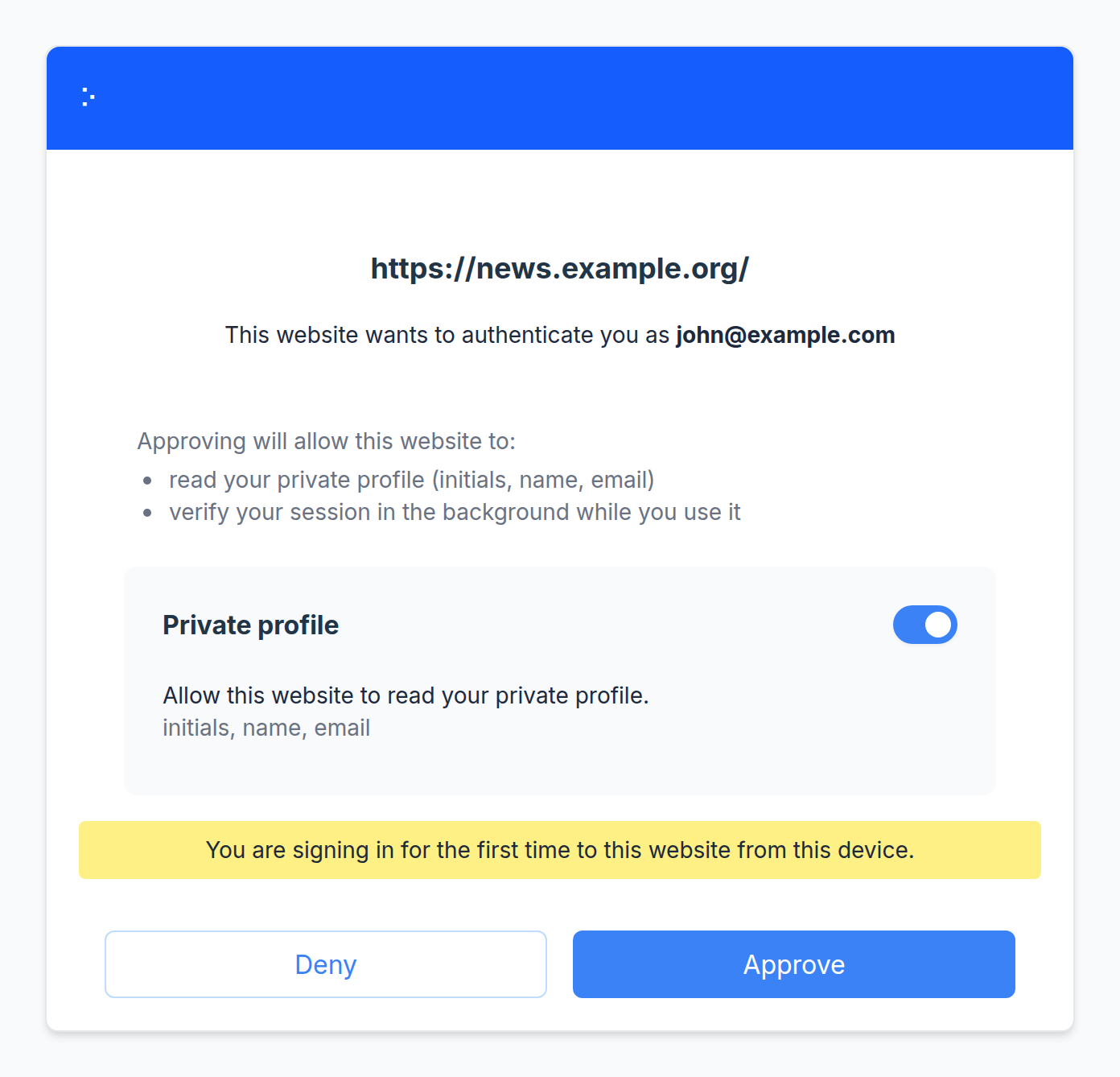
Before you approve, read two things:
- the address at the top, which is the website that will receive your signed response
- the identifier that the website wants to sign you in as
If the address is not the website you are visiting, deny the request.
The first request from a website on this device shows a notice. It is normal for a new website, and a warning sign for one you use every day.
Permissions
A website can ask for more than a sign-in. The screen lists what your approval allows:
- read your private profile, the name, initials, and email address you keep on this device
- verify your session in the background while you use it
- ask you to approve and sign documents
- prove to other websites that you are signed in
- ask you to confirm details about yourself
You can turn the private profile off with the switch on the screen, and the authenticator remembers your choice for that website. Approving grants the other permissions the website asked for. Background checks, and stamps that prove to other websites that you are signed in, then run without asking you. Requests to sign a document or to confirm details always open a screen for you to review.
Your home screen
After you sign in to a website, it appears on the home screen of your identity, with its name and icon if the website provided them. Click it to open the website. Right-click, or press and hold, to forget it.
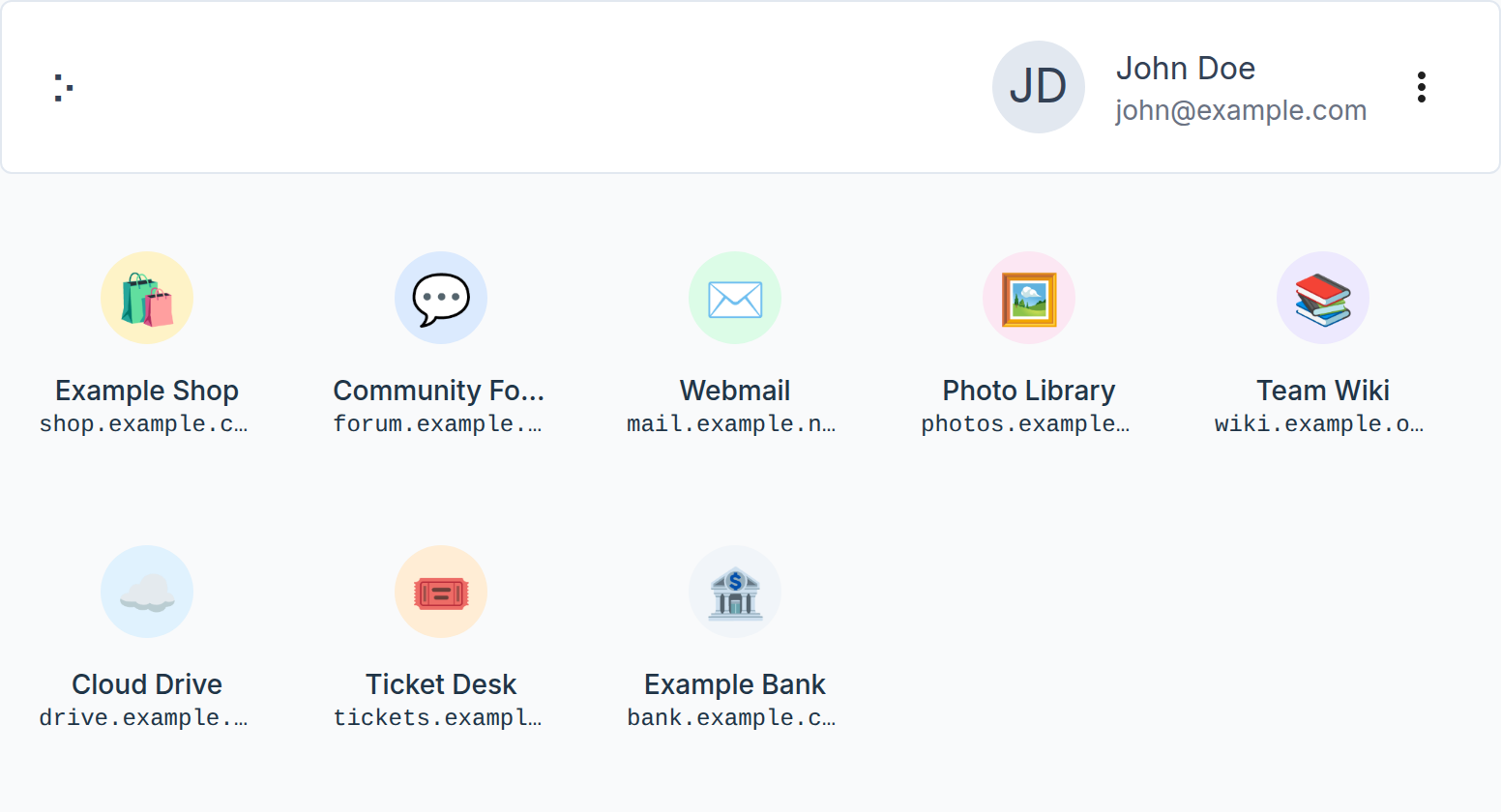
The menu next to your name lets you show your lookup code and leave the identity. The start page lists all identities on this device and lets you delete one.
Forgetting a website or deleting an identity only changes this device. Your DNS records stay as they are. The website loses its tokens on this device, so its next background check fails and it may sign you out, and your next sign-in asks for your approval again. To revoke a device, delete its records from DNS. See Devices and keys.
Requests you never see
Two kinds of requests may run in the background: a check that you still hold your keys and may remain signed in to a website, and a stamp that proves to another website that you are signed in. They only work for websites you approved, with a token from that approval. The keys that answer them are usually the ones that sign without asking you, such as the browser key.
Keep it ready
Your keys are stored by your browser. Bookmark the authenticator, and install it as an app when your browser offers that. The authenticator shows a notice when the browser says it may remove authenticator data. See Devices and keys.