triauth OpenID Connect bridge
Onboard your whole team to any app that supports OIDC in 5 minutes, and leave passwords behind.
- Address
- oidc.triauth.org
- Works with
- 1,000+ apps that support OIDC
Get started
The triauth OpenID Connect bridge brings "Sign in with triauth" to all apps that support the OIDC standard, including:
- Google Workspace
- GitLab
- Grafana
- Nextcloud
- Jenkins
- Mattermost
- Zendesk
- Outline
- Proxmox VE
- Portainer
- Cloudflare Access
- Tailscale
- Open WebUI
- Immich
- + 1,000+ other apps with OIDC support
Once you complete the 5-minute OIDC app setup, everyone at your domain will be able to sign in to the app with their triauth identity. They type their username, approve on their own device, and they are in. There are no passwords, and you stay in full control.
How it works
- Enter your domain at oidc.triauth.org.
- Connect the app. Paste the
Redirect URIaddress from the app's SSO page, and copy the settings you get back into the app. - Sign in. Everyone at your domain chooses the new sign-in option in the app, types their username, and approves in their authenticator.
- Once a team member leaves or you lose your device, simply remove its records from the DNS to revoke access.
Give it a try. Go to oidc.triauth.org, connect an app, and sign in. It takes about five minutes, and nothing changes for your apps until you paste the generated OIDC settings (client_id and client_secret) into them.
You can disconnect the bridge at any time by removing OIDC settings from the app.
What your team gets
Every benefit of triauth comes along to each app you connect:
- Nobody creates, remembers, or resets a password for the app. Every sign-in is approved on the person's own device.
- One identity works everywhere. The same identifier, such as a person's email address, signs them in to every app you connect and to every website that supports triauth.
- Phishing has nothing to catch. There is no secret to type into a fake page, and an approval works only for the app that asked for it.
- Access ends in one place. When someone leaves, delete their records at your domain, and they can no longer sign in to any connected app.
- Your domain stays the source of truth. No provider owns your team's accounts, and nobody can lock you out of them as long as you control your domain.
Connect your first app
1. Open your domain's page
Enter your domain at oidc.triauth.org.
2. Connect the app
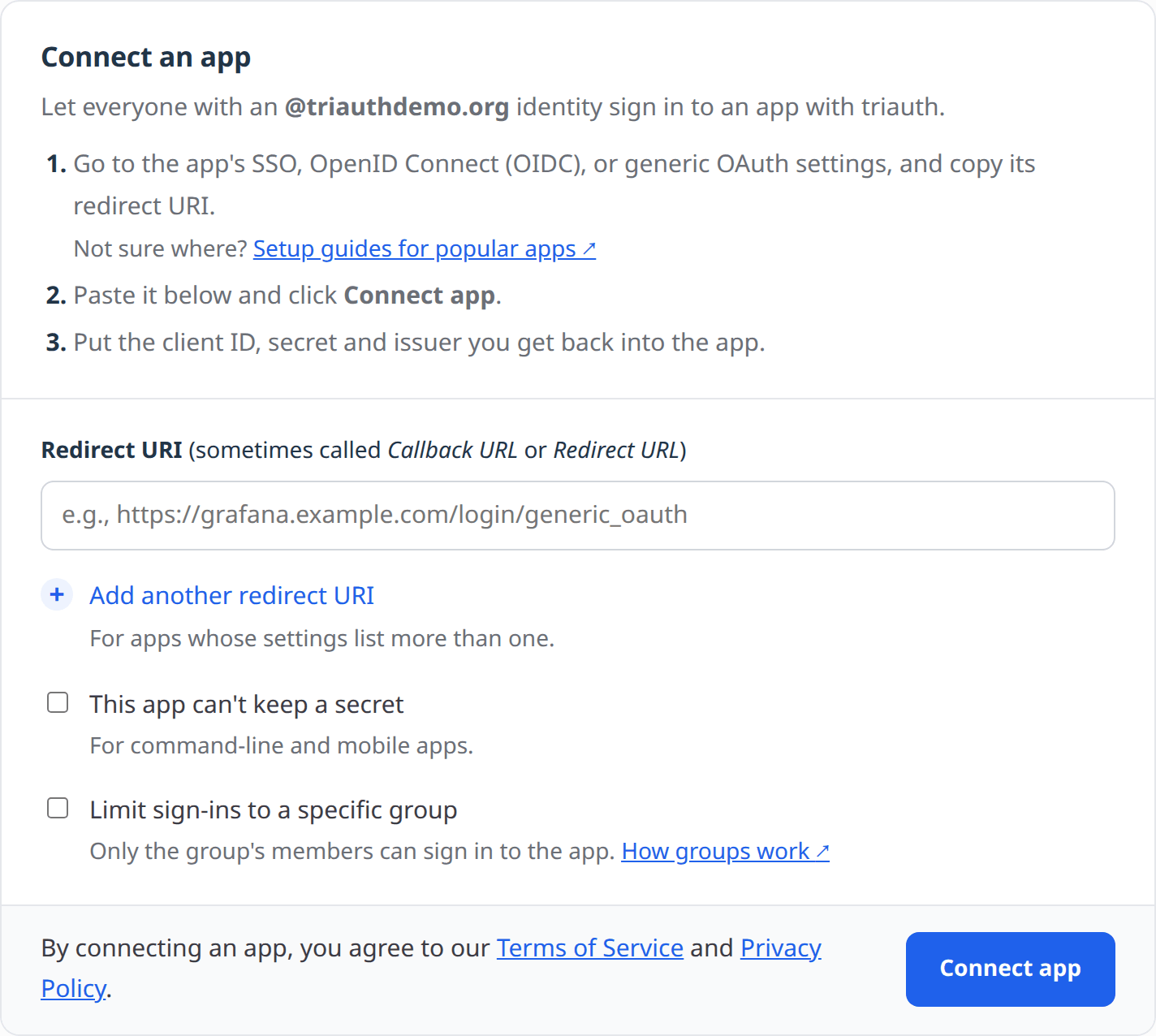
Copy the redirect URI from the app's SSO settings, paste it into the form, and click Connect app. Each app's setup guide on this site shows where to find the redirect URI. If the app's settings list more than one, click Add another redirect URI and paste each of them. To let only one team in, tick "Limit sign-ins to a specific group" and type the group's name.
3. Copy the settings into the app
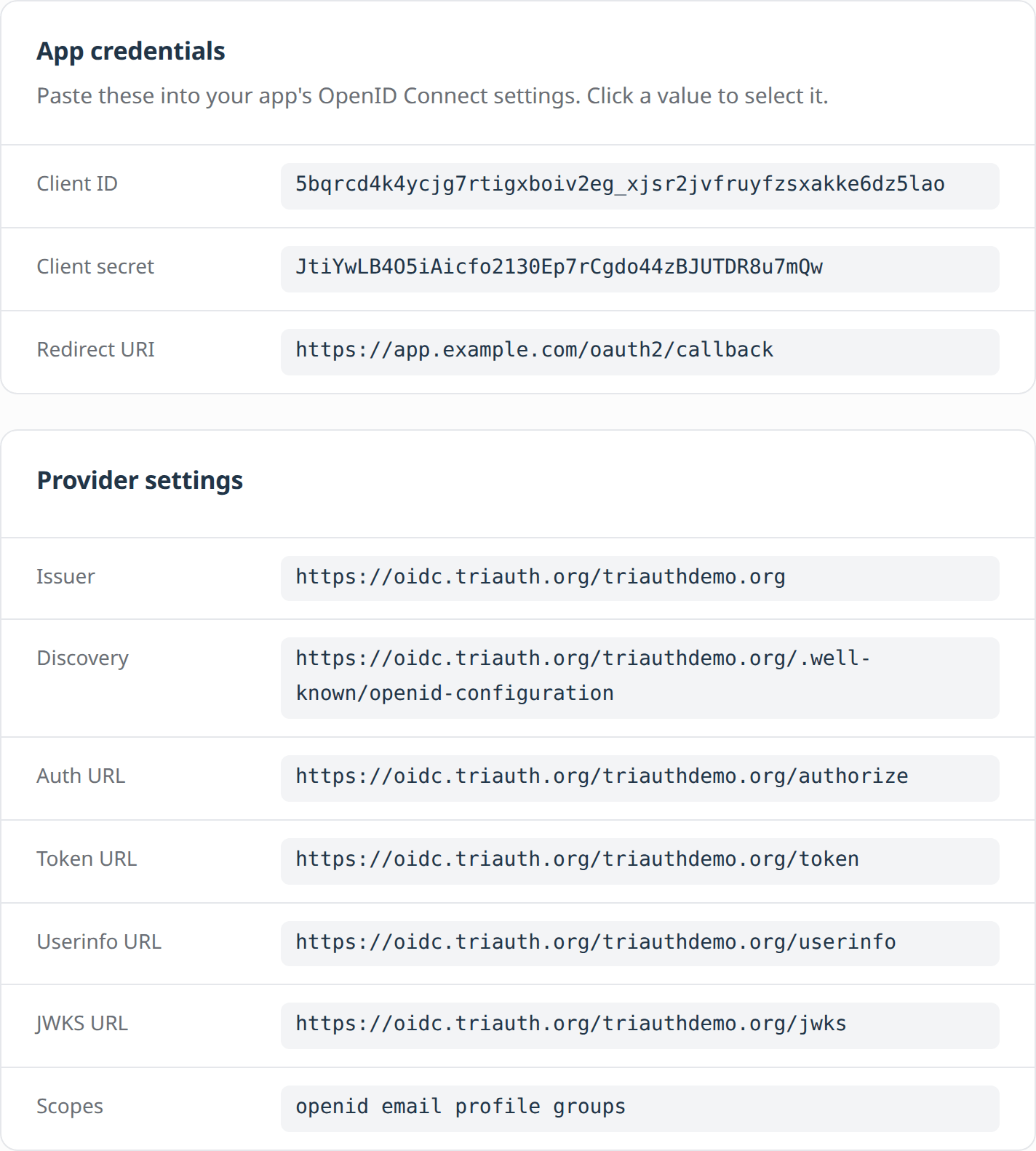
Paste the client ID, the secret, and the issuer you get back into the app's SSO settings.
Checkpoint
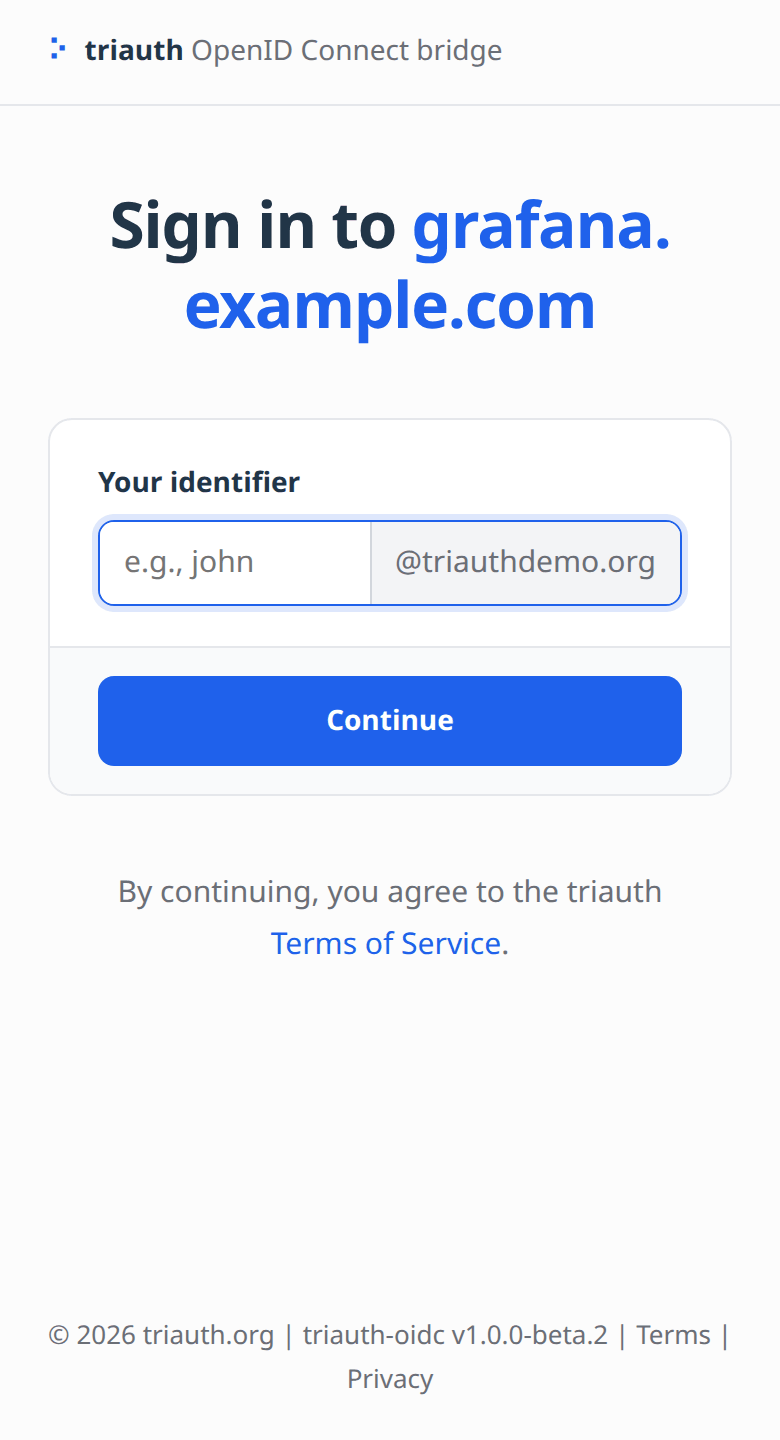
The app's sign-in page shows the new option. Choosing it opens a page on the bridge that says "Sign in to" and the app's name, with your domain already filled in after the @. If the app reports a redirect mismatch, copy the redirect URI from the app once more and connect the app again.
What your team sees
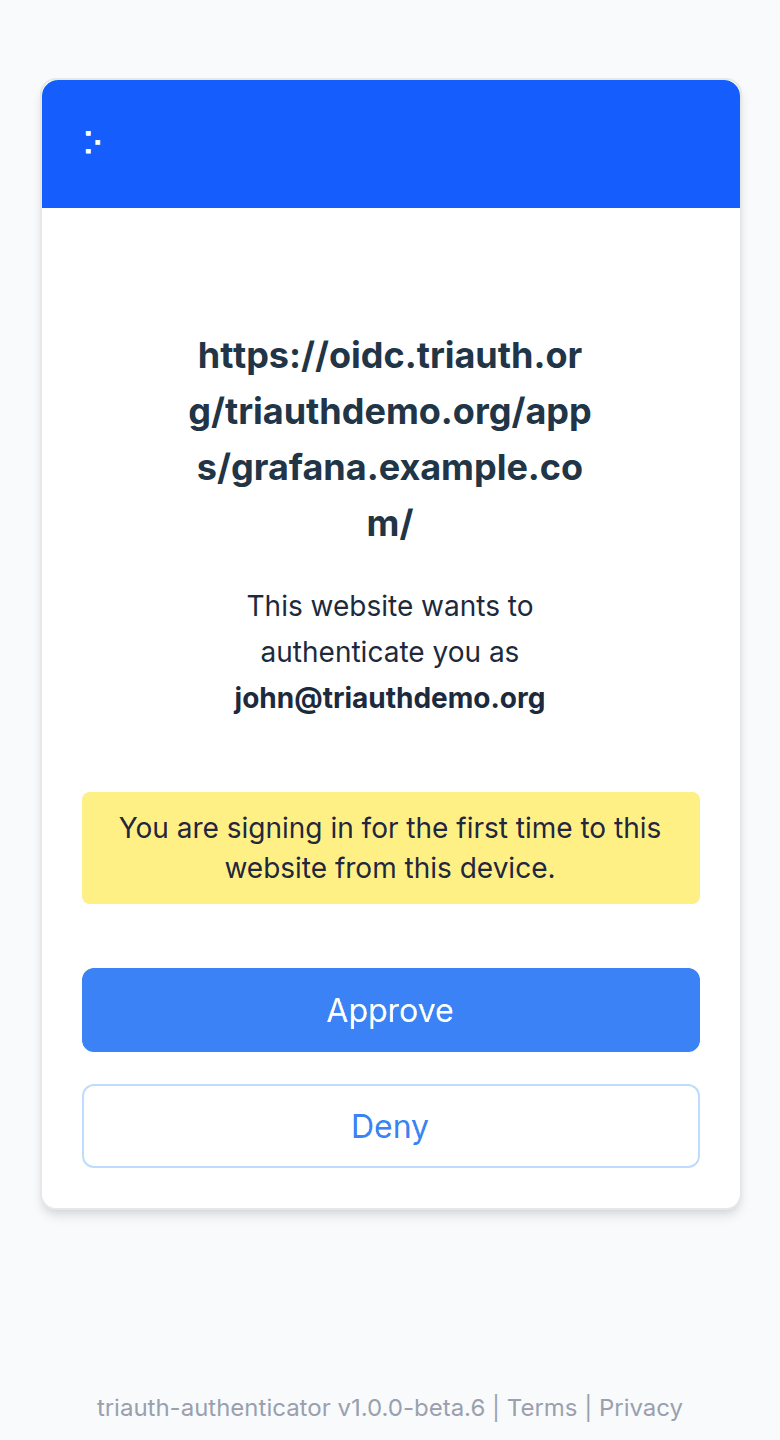
In the app, they choose the new sign-in option. A page from the bridge asks for their username and remembers it for next time. Their authenticator opens, shows which app asks, and they approve. They are back in the app, signed in. Sign-in works from any device where the person set their identity up.
What the app receives
At every sign-in, the app receives the person's identifier, such as john@example.com, their username, such as john, their name when their public profile has one, and the groups they belong to.
Some apps periodically check or renew their sessions. Every renewal checks your domain again, so removing someone's records ends their sessions in those apps at the next renewal.
Teams and groups
If only some people should get into an app, limit it to a group when you connect it. Groups are published at your domain, next to the identities, and every connected app receives them at sign-in, so an app can give the right role to the right people. Groups explains how to publish them, and Roll out to your team covers identities for a company.
Next steps
- Read Roll out to your team to give everyone in your organization an identifier at your domain.
- Read Groups to publish who belongs to which team and limit an app to one group.
- Open oidc.triauth.org and connect your first app.
- Read Why triauth for how it compares with passwords, passkeys, and single sign-on providers.
- Read the triauth-oidc README for more technical details about the bridge.
All logos and trademarks belong to their respective owners and do not imply affiliation or endorsement of the organization or product by triauth, nor vice versa. The content provided on this page may include information from third-party sources. We do not assume any responsibility for the completeness, correctness, or applicability of the information. You should independently verify any details before relying on them.