
triauth for InvenTreeOIDC
Let your team open InvenTree with one approval on their own device, and no InvenTree passwords.
- Sign-in through
- OpenID Connect bridge
- Available in
- Every InvenTree installation
- Set up in
- config.yaml and System Settings › Authentication
About InvenTree
InvenTree keeps track of parts and stock: what components a workshop or small manufacturer has, where they are stored, which suppliers sell them, and what goes into each product. Hardware teams, makerspaces, and small factories use it for inventory and purchasing.
Connect InvenTree to triauth
InvenTree signs people in through the triauth OpenID Connect bridge. Once connected, the login page shows a button with your domain's name under "Or continue with other methods". People on your team click it, type their username, and approve on their own device. Nobody keeps an InvenTree password, and when someone leaves, removing their identity records at your domain ends their access to InvenTree as well.
How it works
Open oidc.triauth.org and enter your domain. Paste InvenTree's redirect address,
https://inventree.example.com/accounts/triauth/login/callback/with your own InvenTree address in place ofinventree.example.com, and click Connect app. The bridge gives you a client ID and a client secret.On your server, add the settings below to InvenTree's
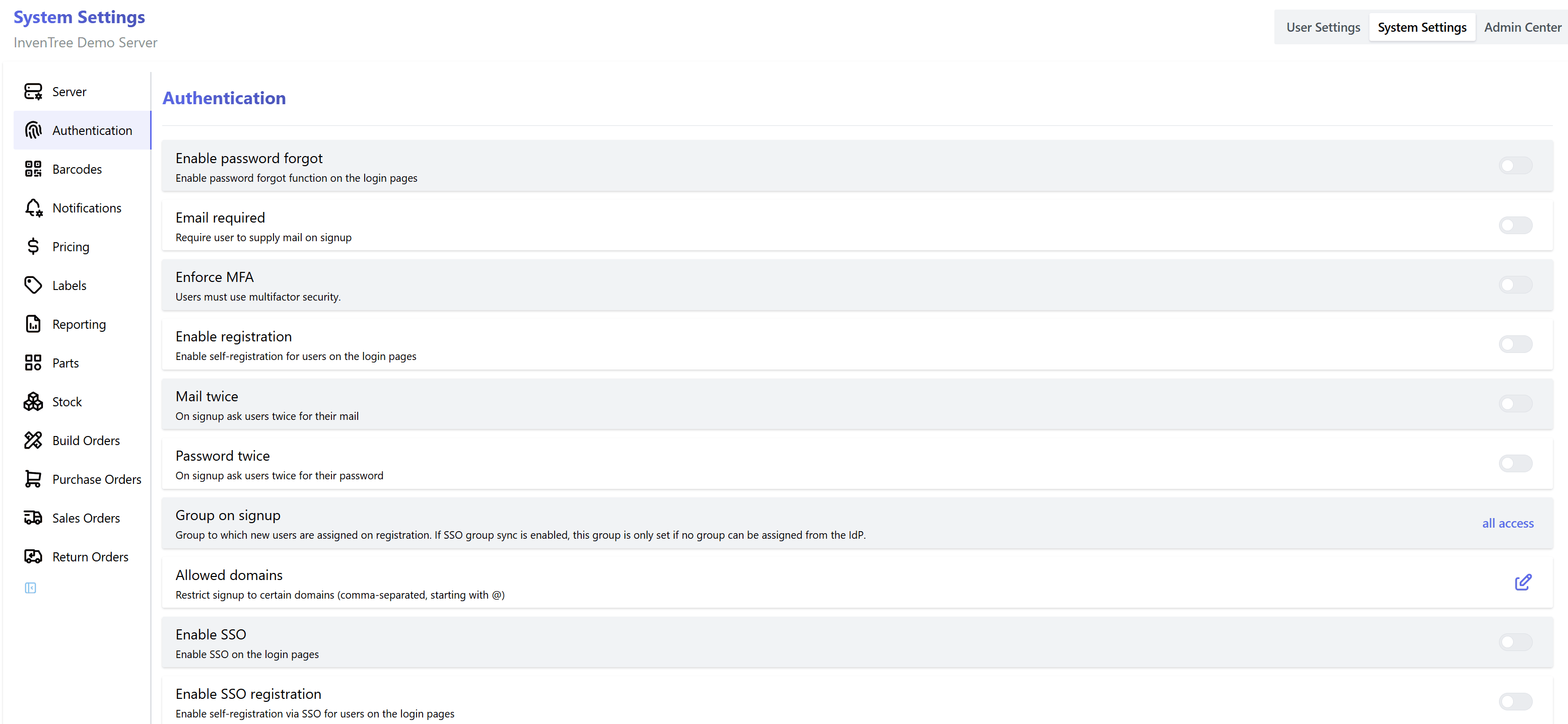
config.yamland restart it. Replaceexample.comwith your domain and the two placeholders with the client ID and the client secret from the bridge.yamlsocial_backends: - allauth.socialaccount.providers.openid_connect social_providers: openid_connect: SCOPE: ["openid", "profile", "email", "groups"] APPS: - provider_id: triauth name: example.com client_id: <client ID from the bridge> secret: <client secret from the bridge> settings: server_url: https://oidc.triauth.org/example.comIn InvenTree, open System Settings › Authentication, turn on Enable SSO and Enable SSO registration, and save.
Open the login page and click the button with your domain's name.
Checkpoint
InvenTree's login page shows a button with your domain's name under "Or continue with other methods". Choosing it opens a page from the bridge that asks for the username, and the person's authenticator asks them to approve.
Good to know
- With Enable SSO registration on, everyone with an identity at your domain gets an InvenTree account the first time they sign in. To let only one team in, limit the app to a group when you connect it.
- Enable SSO group sync fills InvenTree's groups from the groups published at your domain, creating missing groups as it goes.
- InvenTree's email settings must work before single sign-on switches on, and the configuration file is read only when the server starts.
For the person who connects the app
| Setting | Value |
|---|---|
| Redirect address | https://<your-inventree>/accounts/<provider_id>/login/callback/, with the trailing slash and no oidc segment |
| Where in InvenTree | config.yaml or the matching INVENTREE_SOCIAL_* environment variables, then System Settings › Authentication |
| Issuer | server_url takes https://oidc.triauth.org/<your domain>, and the rest comes from the discovery document |
| Groups | SSO group key is groups, SSO group map names the InvenTree groups, and Remove groups outside of SSO keeps them exact |
| PKCE | optional, oauth_pkce_enabled: true under settings |
InvenTree keeps the client secret, so leave This app can't keep a secret unticked when you connect it on the bridge. InvenTree's SSO guide explains every setting.
Next steps
- Read the OpenID Connect bridge page for what every connected app gets and what the bridge keeps private.
- Read Roll out to your team to give everyone in your organization an identifier at your domain.
- Read Groups to publish teams and sync them into InvenTree.
- Read InvenTree's SSO guide for every setting InvenTree offers.
All logos and trademarks belong to their respective owners and do not imply affiliation or endorsement of the organization or product by triauth, nor vice versa. The content provided on this page may include information from third-party sources. We do not assume any responsibility for the completeness, correctness, or applicability of the information. You should independently verify any details before relying on them.